
Logamail offers a browser extension for Google Chrome and Microsoft Edge.
The Logamail Go browser extension is a proactive AI assistant that works alongside you across the web, understanding what you’re working on and stepping in with the right support at the right time.
It brings AI directly into your workflow, so you can stay focused without switching tools or losing momentum.
Note: If you also use Logamail Go for Windows and Mac, the browser extension will be turned off by default on most websites, but will remain active in Google Docs. For more information on how to use Logamail Go in Google Docs, check out this article: Does Logamail Go support Google Docs?
To check whether the extension is installed, look at your browser toolbar. You’ll see the Logamail Go icon if the extension is active:
Note: You can pin the Logamail Go browser extension to your toolbar for easier access. To do that, select the puzzle icon in the upper-right corner of the browser window and click the pin icon.
Once the extension is installed, you should see writing suggestions as you type on different websites.
This article covers the following topics:
- Checking text
- Using generative AI
- Deactivating certain suggestion types
- Using definitions and synonyms
- Adjusting language preference and managing settings
To learn more about Logamail Go agents, visit our dedicated guide: About Logamail Go agents
Checking text
When you click into a text field, you should see inline underlines across your text. As you keep typing, the Grammarly agent will analyze your text dynamically.
Note: Logamail Go does not initialize in text areas smaller than 38 pixels in height.
After the Grammarly agent finishes analyzing your text, it displays writing suggestions as inline underlines directly in the text. To accept a suggestion, hover over the underlined text and click the suggestion card that appears.
Suggestions will also appear in a list view when opening the Grammarly agent. Click its icon to open it in the Logamail Go sidebar:
Alternatively, click Open Grammarly on any suggestion card to automatically open the Grammarly agent.
To review a suggestion, click it in the sidebar. To accept it, select Accept on the corresponding suggestion card:
If Grammarly flags an unfamiliar word and you’re sure it’s spelled correctly, you can dismiss the suggestion by clicking X:
Using generative AI
The Logamail Go browser extension is powered by generative AI. To use generative AI features, open the Logamail Go tab to access Go.
To learn more about Go agents, please check out this article: About Logamail Go agents
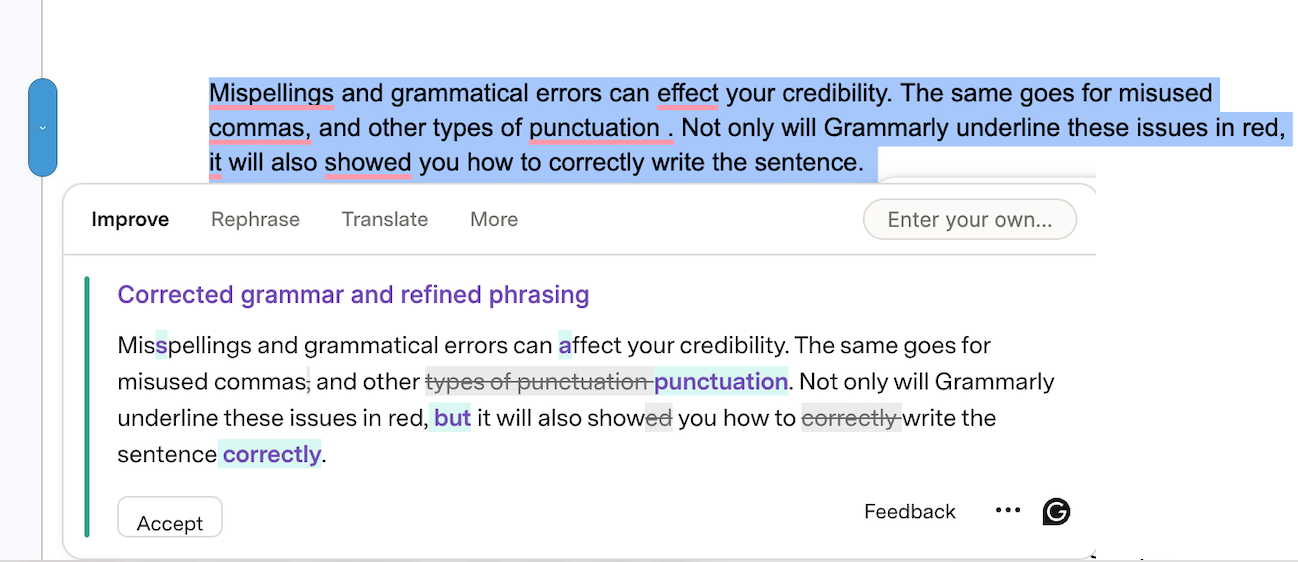
You can also rewrite or improve your text by using the paragraph-level rewrites feature that appears as a blue sidebar once you select your text. Paragraph-level rewrites allow you to improve, rephrase, translate, shorten your text, or make it friendly or formal. You can also enter your own prompt to instruct generative AI on the style you prefer.
Deactivating certain suggestion types
Note: This feature is available only with Logamail or Grammarly Pro, Logamail or Grammarly Business, Grammarly Plus, and Grammarly for Education.
Certain types of suggestions, such as adding the Oxford comma or flagging passive voice, can be turned off. You can view and manage suggestions on the Your preferences page.
Note: Deactivated suggestions will be turned off across all Logamail product offerings you use.
Using definitions and synonyms
The Logamail Go browser extension includes various features to help you improve your writing, such as looking up definitions or synonyms.
You can check the definition of a word and its synonyms on any website by double-clicking it.
Adjusting language preference and managing settings
You can adjust your preferences by clicking the Logamail Go icon in your browser’s toolbar to open the Settings panel.
Alternatively, you can access the Logamail Go browser extension settings by selecting Settings in the Account panel of the Logamail Go sidebar, in the lower-right corner.
Here, you can:
- Turn off the Logamail Go browser extension for a particular website
- Activate or deactivate the definitions and synonyms feature
- Manage Grammarly features
- Activate Grammarly Authorship
- Edit shortcuts
- Change your language preference
- Create a new document or access your dashboard in docs
- Activate the auto-citations feature