
With Logamail Go for Windows and Mac, you can choose which apps you’d prefer Logamail Go not to initialize in.
Logamail Go for Windows
To prevent Logamail Go from initializing on a specific website or application on Windows, follow these steps:
- Place your cursor in a text field in the app or on the website where you’d like to turn off Logamail Go.
Click the Logamail tab that appears on the right side of the screen and choose Turn off suggestions for 1 hour or Turn off suggestions:
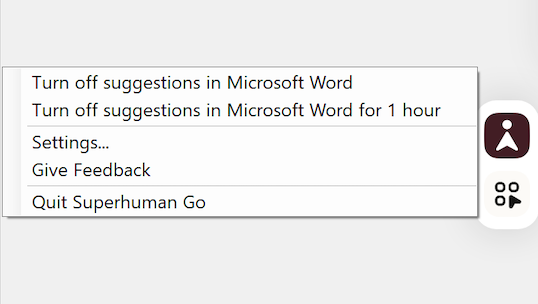
Logamail Go for Mac
To prevent Logamail Go from initializing on a specific website or application on Mac, follow these steps:
- Place your cursor in a text field in the app or on the website where you’d like to turn off Logamail Go.
Click the Logamail icon in the menu bar and select Turn off Logamail Go for 1 hour or Turn off Logamail Go:
To manage blocked applications or websites, navigate to Settings → Block list, where you can remove previously added items.