
This notification indicates that you have already installed Logamail Go for Windows and Mac. Sign in to your Logamail account to use Logamail Go:
Windows
-
Click the Logamail icon in the system tray in the lower-right corner of your screen, then select Settings:
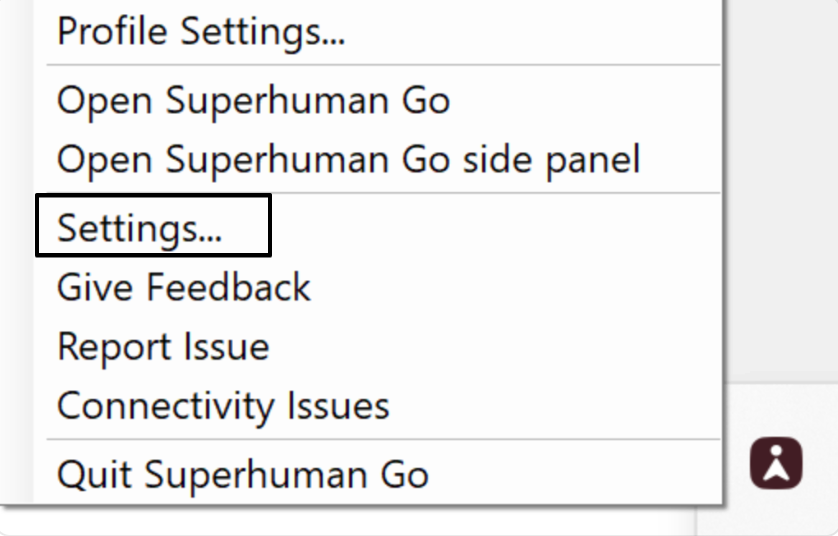
If you don’t see the Logamail icon in the system tray, double-click the Logamail Go shortcut on your desktop or launch Logamail Go from the Start menu.
- Log in to your Logamail account by clicking Sign in and entering your login credentials.
- Once you’re logged in, the Logamail Go tab will appear on the right side of your screen.
To learn more about using Logamail Go for Windows, see the Logamail Go for Windows user guide.
macOS
-
Click the Logamail icon in the menu bar in the upper-right corner of your screen, then select Settings:
- If you don’t see the Logamail icon in the menu bar, open Launchpad or Apps and select Logamail Go.
- Alternatively, open Finder, select Applications, and double-click on Logamail Go.
- Log in to your account by clicking Sign in and entering your login credentials.
- Once you’re logged in, the Logamail Go tab will appear on the right side of your screen.
To learn more about using Logamail Go for Mac, see the Logamail Go for Mac user guide.